 |  |  | |  |  |  | |  | |
 | |||||||||
 | | |
| dESPair CodaBot Info & Tutorial
| INDEX 1) What is CodaBot ? | |
| Step 5 - Data transmission
Now it's time to send the data to the dESPair HQ.
| 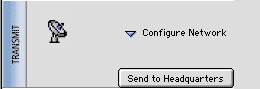 | |
| First time you run CodaBot, you need to click the triangle left of the "Configure Network" text, to set up the required network data.
eMail Please supply your callsign and a descriptive subject line (as told in the mission docs). Click "Save Prefs" to save the entered data. Next time you startup CodaBot, these values will be predefined and active. | 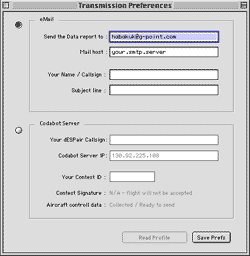 | |
| Codabot Server This feature is currently disabled as the Server is not yet running stable enough. later, CodaBot will be enabled to log directly into the CodaBot Server running in the dESPair HQ. | ||
| Step 6 - Saving the data We recommend that you save the data no matter if the transmission was successfully or not. If something fails on the recipient side, you might be happy to have the data still on your system. So, after transmission, click the "Save Data" button and save the file anywhere you like. CodaBot output is a tab delimited text file, so you can drop it on Excel or any other spreadsheet and analyze the data at your leisure.
|  | |
| Last notes If you are going to process huge data files, give CodaBot as much RAM as you can. CodaBot should be running on Win98 and maybe win2000. I have tested it on my VirtualPC running Win98 - and it works nicely. Clear sky! | ||
| First Page | ||
