dESPair
PATHy 1.0 - Tutorial


    Summary flight data

    Now that we have planned the whole flight from LSZB to LSZH, you can get the summary flight data from the fields below the flight plan listbox in the FlighPlan window.


INDEX

Back To HabakukSoft

1)
What is PATHy
2.)
Requirements
3.)
Registration
4.) Tutorial
-
Installation
-
Navigation / Controls
-
Exploring the windows
-
Centering the map
-
Measuring distances
  /headings

-
Planning a flight
-
Using airports
-
Using VORs and NDBs
-
Adding legs
-
Printing the MFD
-
Printing the flight plan
-
Saving the flight plan
-
Working with maps
-
Planning VFR flights
5.)
Download / Updates
6.)
Support


    As you can see, the flight from LSZB to LSZH, with cruise speed 165kts, 3000ft and an average fuel consumption of 156 lb/h leads over 79nm, and will take us about 29 minutes and we will spend 74lb fuel.


    To discard the whole flight plan and start all over again, hit the
    “New Plan” button on the right MFD window side.


    Printing the MFD

    Once you have your flight planned, you may want to print the map displayed in the MFD. Simply zoom in/out until you can see the whole flight path, and hit the “Print” button in the MFD window.

    Now you get through the standard PrinterSetup dialogs. In the appearing window, select the page setup and proceed, select the number of copies and proceed. You should now get a usable map for your flight. In conjunction with the tabulated flight plan, your situational awareness will increase tremendously...

    PATHy automatically resizes the output to fit on the page. As PATHy’s MFD map is square, it doesn’t matter if you select landscape or portrait...


    Printing the flight plan

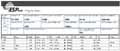
    To print the flight plan in a tabulated form, you go to the FlightPlan window, and hit the “Print Plan” button. This brings up a preview of the flight plan as it will be printed (excluding the logo).

    If what you see is ok to print, hit the Print button in the preview window. This will direct you to the standard PrinterSetup dialoges. Select page setup (landscape) and as many copies as you like.


    Saving the flight plan

    In some situations you may want to save the flight plan data. dESPair hub commanders and pilots plan many flights and share the plans with each other - be it for a guided tour over nice scenery or be it a SOAS undercover mission...

    To save the flightplan data, go to the FlightPlan window and select the “Save as text” button. The default file name is built from the trip name you supplied. The plans end with the extension .flp for easy detection.