 |  |  | |  |  |  | |  | |
 | |||||||||
 | | |
| dESPair PATHy 1.0 - Tutorial
| INDEX Back To HabakukSoft
| |
| Enter “LSZB” into the empty editfield just above the center button. Hit the button and wait a moment. PATHy now searches all airports and nav aids in the vicinity of LSZB and draws the map in the MFD. |  | |
| Playing with the controls Now that LSZB is centered on our map, we can look for near nav aids that we want to use for our navigation. To the right, you see a picture of how your map should look now. The airports are green, the VORs blue and the NDBs are in dark yellow. ILS are drawn in red. You can turn off the grid, if you want. The x and y axis are labeled with the latitude and longitude values, according to the zoom level you selected. By centering the display on a given airport, you can easily read out the coordinates for the (first runway of the) airport. | ||
To zoom the map in or out, you select the range in degrees the map shall display. You can zoom in to 0.1 degrees (per 500 pixel) and up to 180 degrees. The smaller the value, the more zoomed the map appears. Sometimes the displayed data is overlapping. Then, you simply center on an airport, and zoom in. The ILS data for example, becomes better readable if you zoom in - and the manual route selection will be more accurate. You can zoom in and out at any time during the planning process. |  | |
To scroll the map, use the arrow button array to the left of your MFD window, or the arrow keys on your keyboard. Holding the Shift-Key pressed while clicking on an arrow button or hitting an arrow key will increase the scroll steps by a factor 10. |  | |
You can select what data is getting plotted on your MFD map. Simply select or deselect the appropriate check box in the check box array shown to the right: Redrawing speed of the MFD display is greatly improved by deselecting the not required options. | 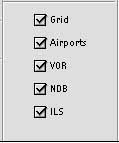 | |
